LightBurn Setup Using LightBurn License - After Your Machine Arrives (PC)
LightBurn Setup Using LightBurn License - After Your Machine Arrives (PC)
Overview
Setting Up Lightburn Using Your Personal Activation Key After Your Machine Arrives (Installation Process and Loading Device Profiles)
What you will learn
In this article you will learn how to install Lightburn and how to connect to your machine.
Why do this
Lightburn is a layout, editing, and control software for your laser. Lightburn talks directly to your laser without the use of additional software. The device profiles created here at the factory controls how Lightburn connects and communicates with the machine, as well as other misc. settings necessary for proper use and operation.
What you need
- Computer with Windows and WiFi connection capability
- Internet Connection
- Lightburn License Key
- USB Thumb Drive (attached to the machine ignition keys)
- USB Cable
Need assistance?
Book time with a qualified technician and get help setting up and navigating LightBurn.
Software and Driver Installation
Note: Before you begin, turn on the laser.
- Go to: https://lightburnsoftware.com/pages/trial-version-try-before-you-buy
- Select your version of Windows from the list to initiate the download.
📌 Note: If you're not sure which version you have, type the words "System Information" into the Search field located at the bottom left corner of your Taskbar. Look for System Type to determine if you have version 32 or 64.
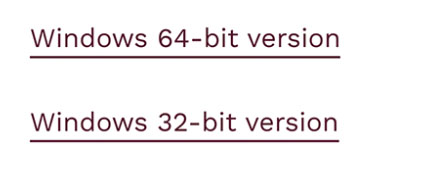
Choose 32-bit or 64-bit - Double-click to launch the Lightburn .exe file.
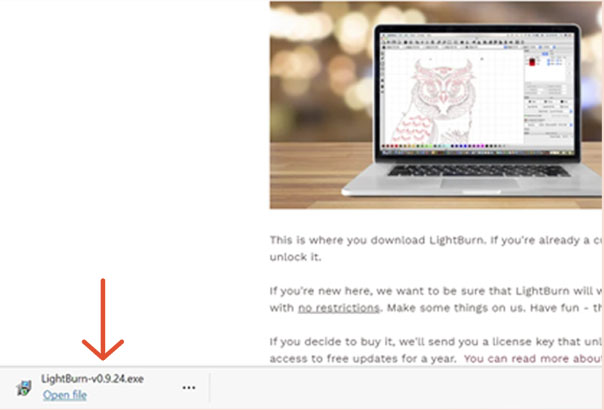
Lightburn .exe file - If you receive the message “Do you want to allow this app to make changes to your device?” Click Yes.
- Click Next to install LightBurn into the Program Files folder.
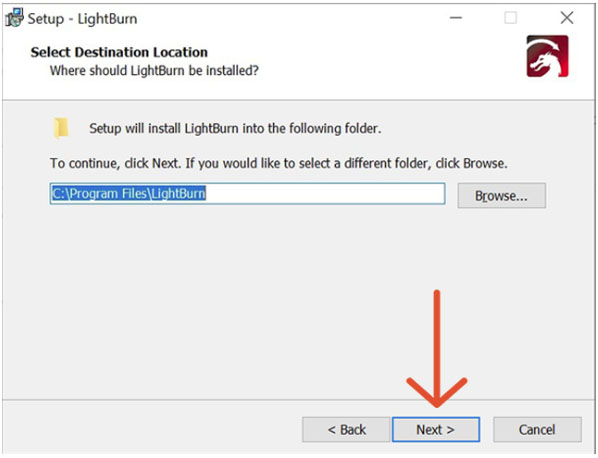
LightBurn Setup window - Click Next to create a LightBurn folder and shortcut in the Start Menu.
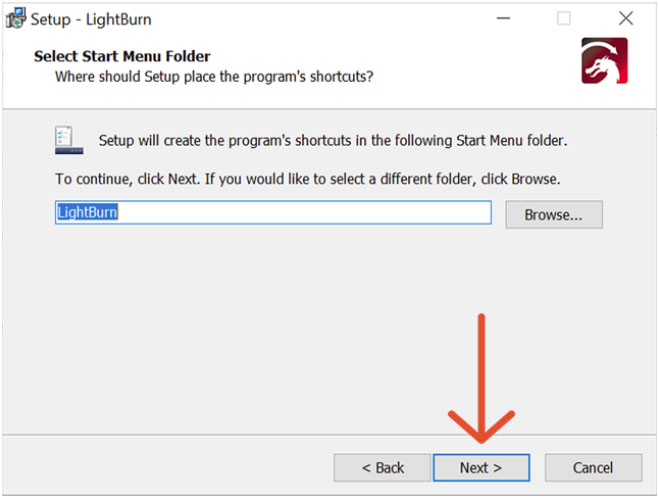
LightBurn Setup window - Click Next to create a shortcut to LightBurn on your desktop.
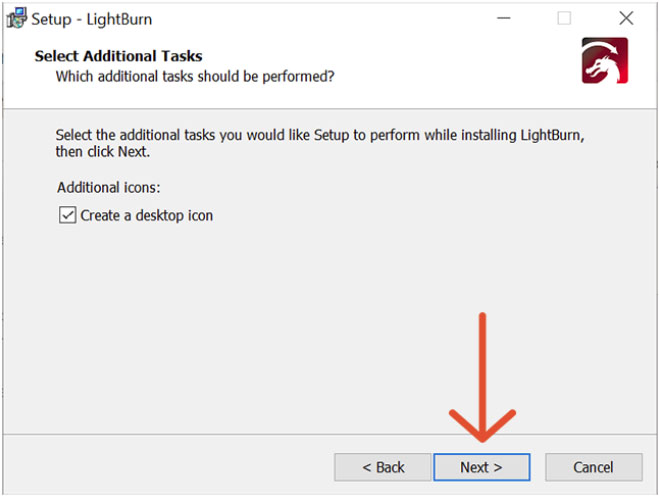
LightBurn Setup window - Click Install to continue.
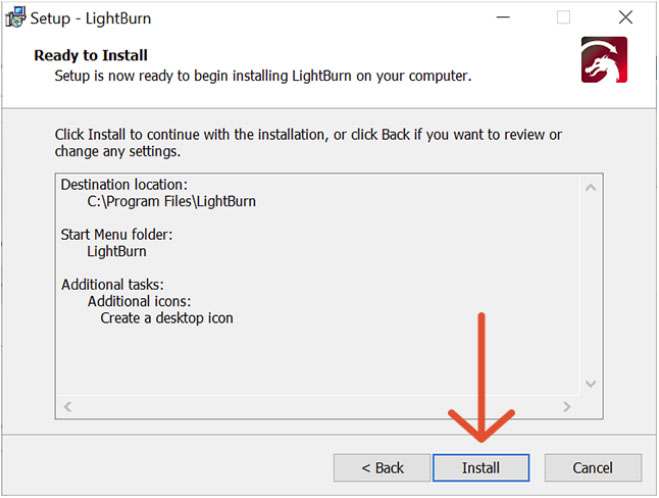
LightBurn Setup window - When the “Completing the Lightburn Setup Wizard” pops-up, check: Install FTDI serial driver, EzCad2 driver (used by galvos, like a fiber laser), and Launch Lightburn.
- Click Finish.
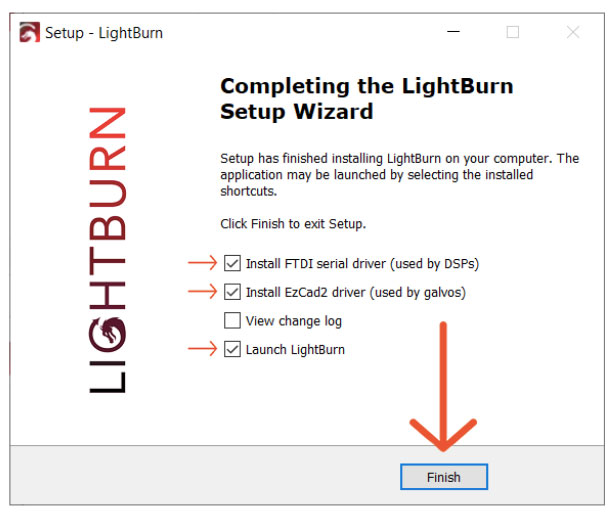
Completing the Lightburn Setup Wizard - If you receive the message “Do you want to allow this app from an unknown publisher to make changes to your device?” Click Yes to continue.
- Click Extract to unpack the Windows driver and launch the installer.
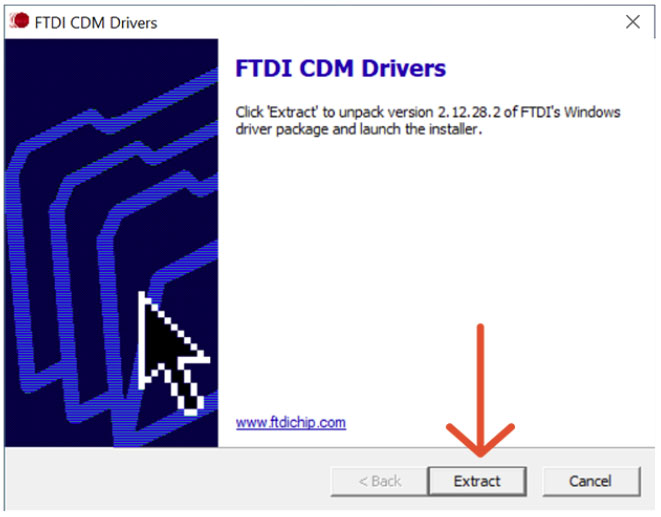
FTDI CDM Driver window - Click Next to continue.
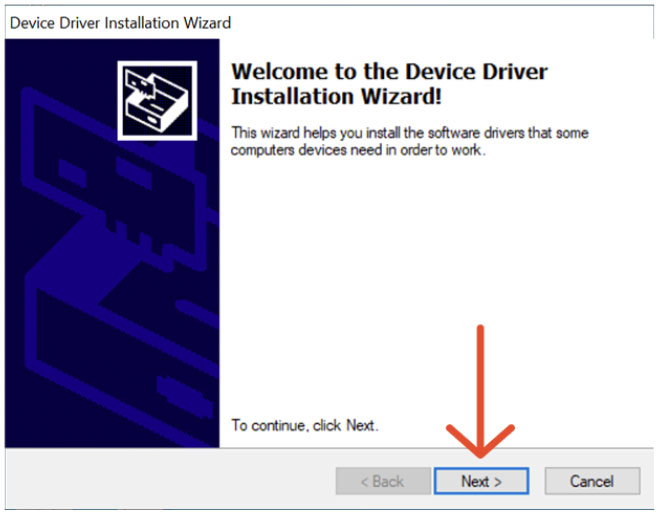
Device Driver Installation Wizard - Check the box to confirm you have read and accept the license terms, and click Next.
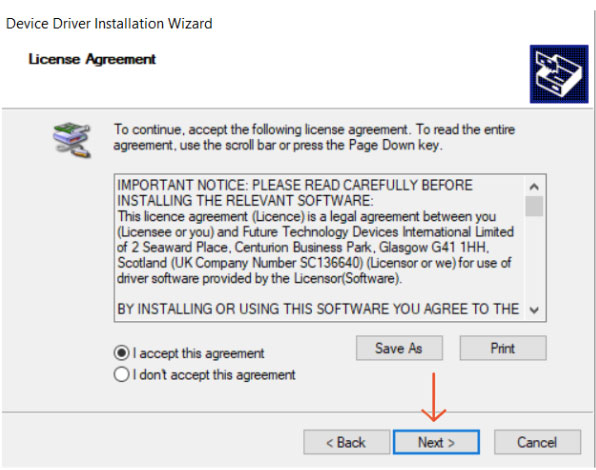
License Agreement - Click Finish.
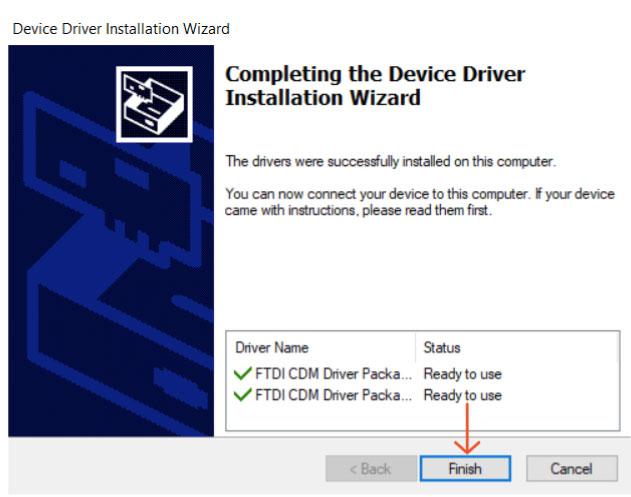
Device Driver Installation Wizard - If you receive the message “Do you want to allow this app to make changes to your device?” Click Yes to continue.
- Click Next again.
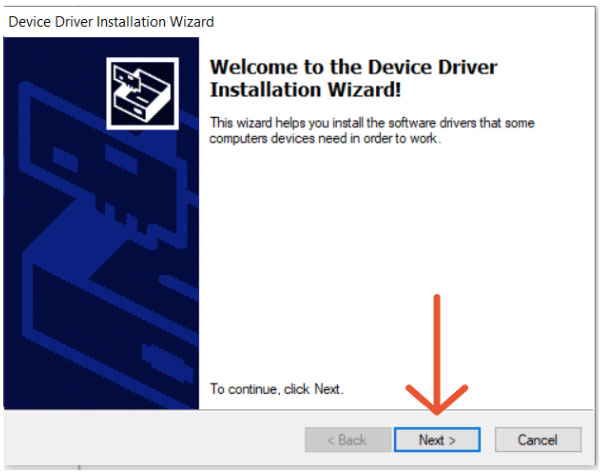
Device Driver Installation Wizard - If you receive the message “Would you like to install this device software?” Click Install to continue.
- Click Finish.
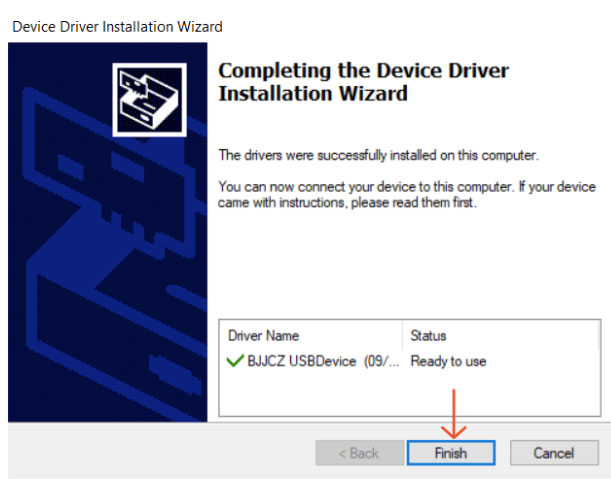
Device Driver Installation Wizard - Click Allow access to allow Lightburn to communicate on these networks.
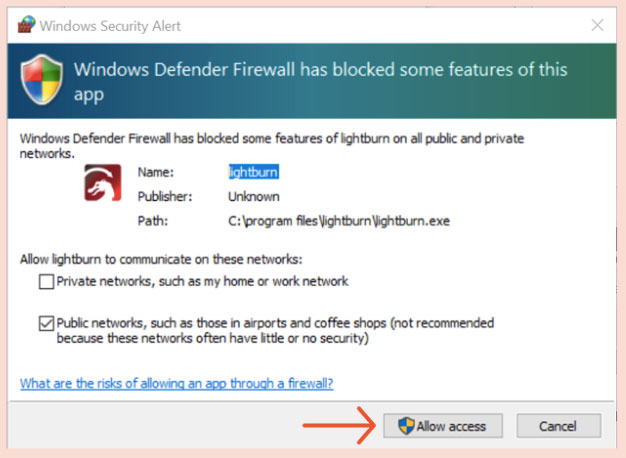
Window Security Alert - Lightburn will automatically launch.
- Copy and paste your Lightburn License Key, which can be found in your Getting Started email. Then click the Activate License button, and click OK.
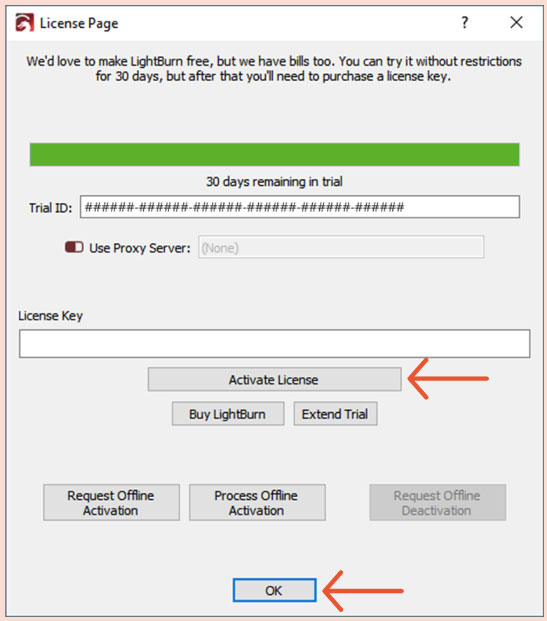
License Page
Connecting via USB
- Plug the USB thumb drive that came with your laser into an open USB port on your computer.
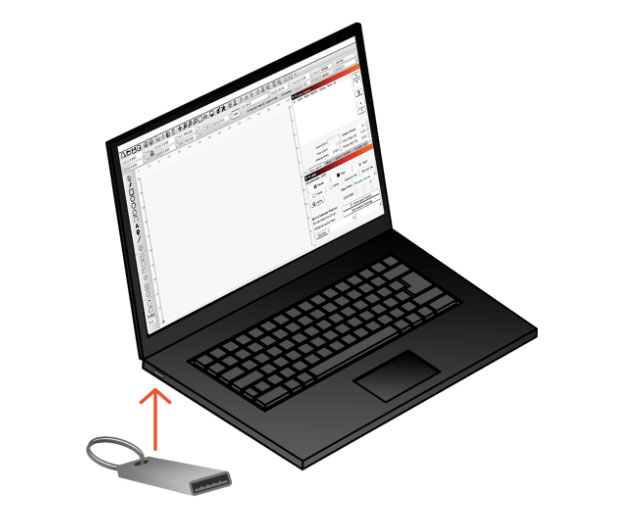
USB Thumb Drive and Laptop - Power the machine on and allow it to fully reset.
- If the Devices Window is open, click Import. If not, click the Devices button in the Laser Window, and then click Import.
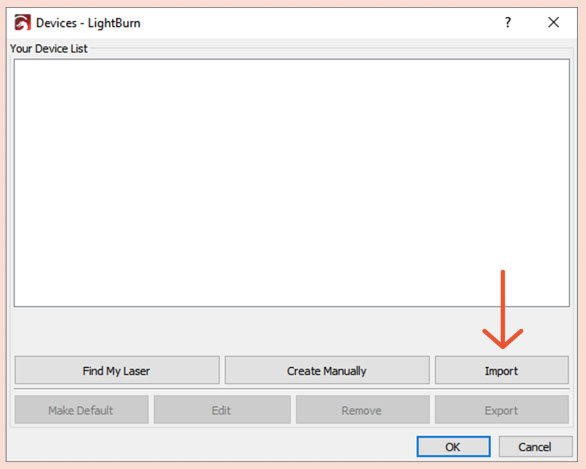
Devices Window - Navigate to the USB Drive on your computer, and open the Settings folder.
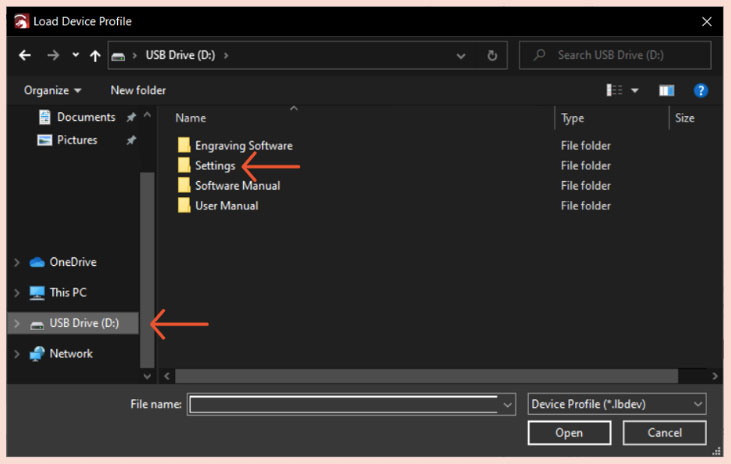
Setting folder - Select the file ending in USB.lbdev, and click Open.
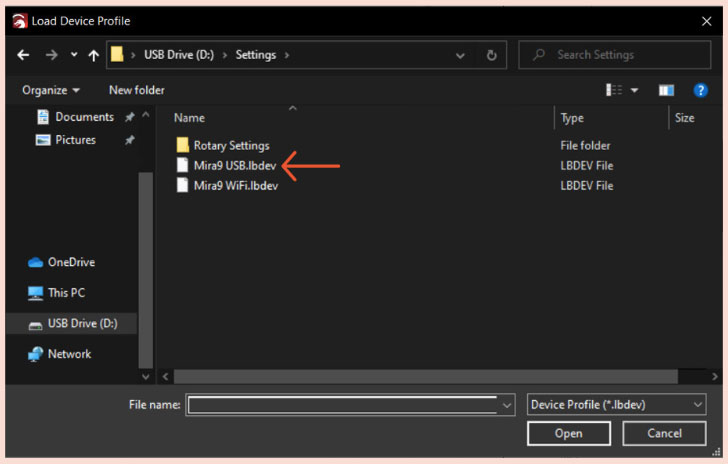
File ending in USB.lbdev - Select the new USB device from the Devices list and click OK.
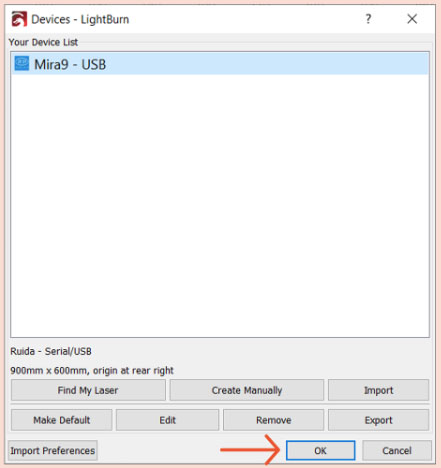
Devices Window - In the Laser Window, select the new USB device from the dropdown menu.
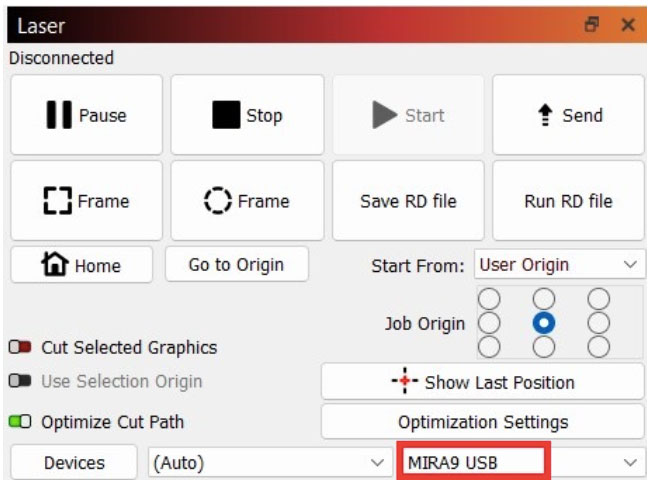
Laser Window - Plug one end of the USB cable that came with your laser, directly into an open USB port on your computer.
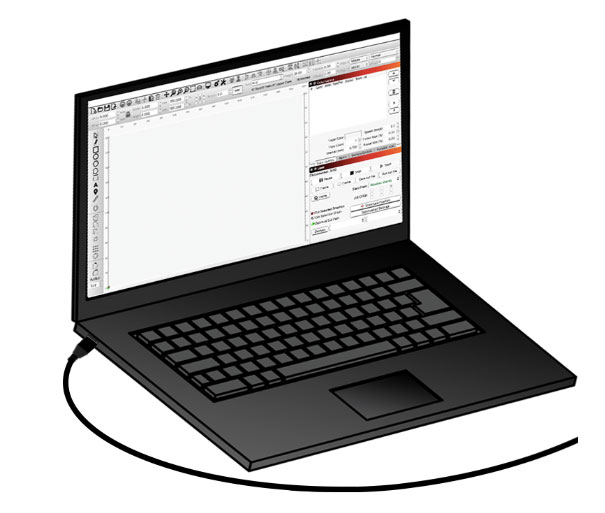
USB cable plugged into laptop NOTE: USB cables longer than 10 feet and USB hubs are NOT recommended. Signal will begin to deteriorate if you travel farther than approximately 10 feet. The speed and power provided will also decrease as the cable is extended further.
- Plug the other end of the supplied USB cable into the bottom USB port, on the right side of the machine.
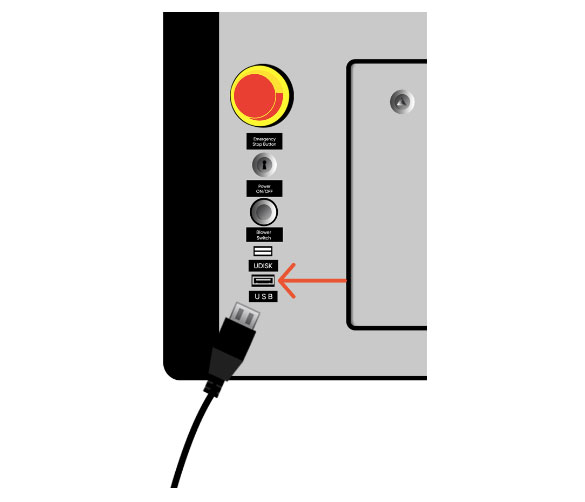
USB cable plugged into laser - In the Laser Window, right-click the Devices button to reset the connection. It should now say Ready.
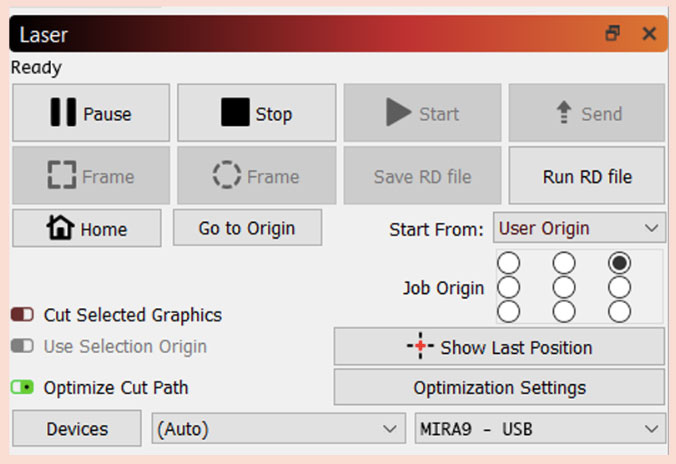
Laser Window
Congratulations! Lightburn is now connected to your laser via USB.
Connect via WiFi
- Plug the USB thumb drive that came with your laser into an open USB port on your computer.
USB Thumb Drive and Laptop - Power the machine on and allow it to fully reset.
- In the Laser window, click the Devices button.
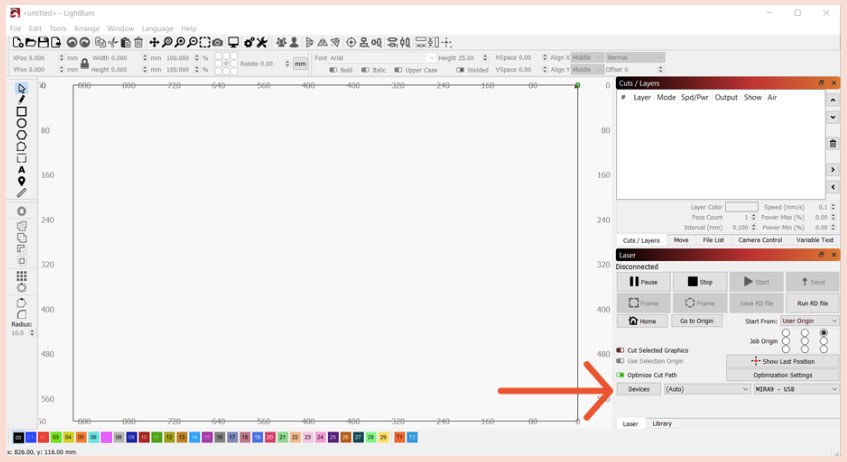
Laser Window - In the Devices window, click the Import button.
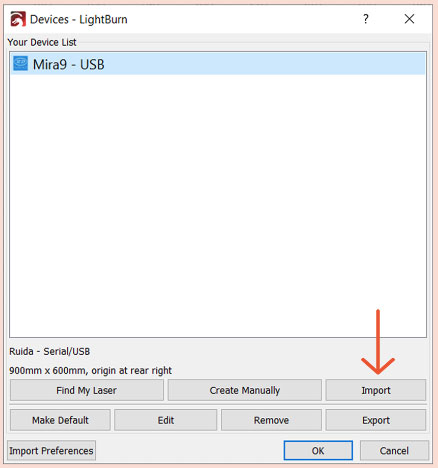
Devices Window - Navigate to the USB Drive on your computer, and open the Settings folder.
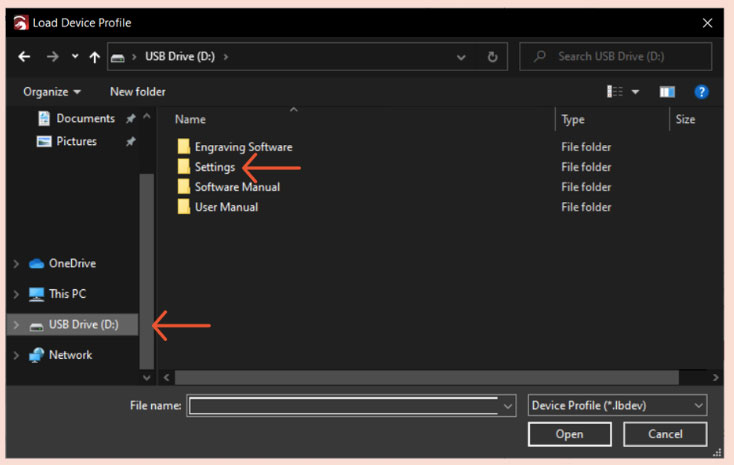
Settings folder - Select the file ending in WiFi.lbdev, and click Open.
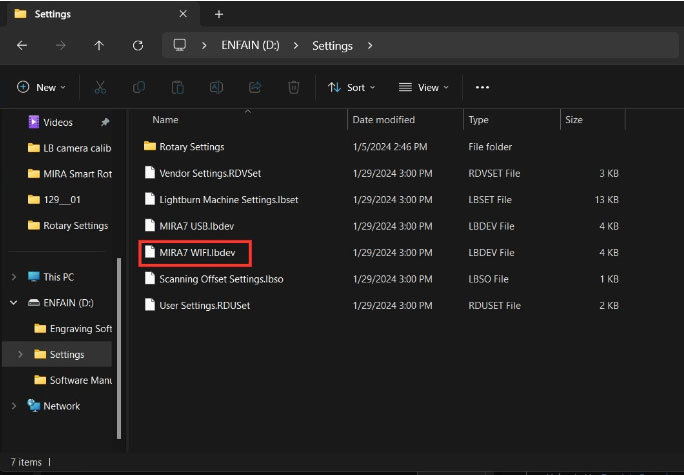
file ending in WiFi.lbdev - Select the new WiFi device from the Devices list and click OK.
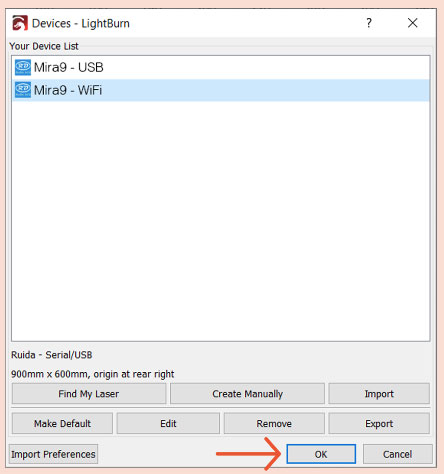
Devices list - In the Laser Window, select the new WiFi device from the dropdown menu.
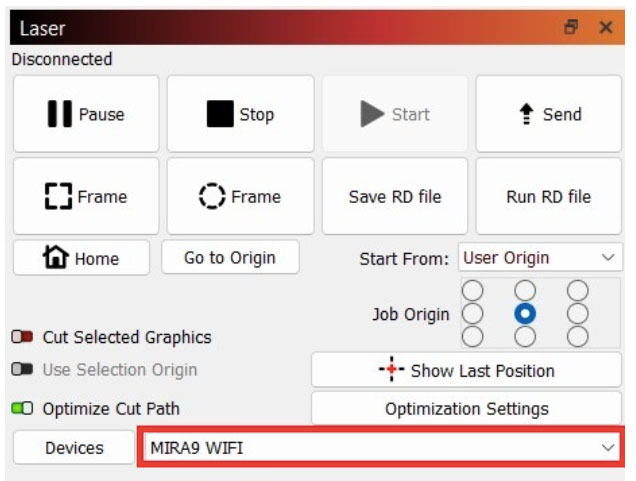
Laser Window - Click on the WiFi symbol on your Taskbar, as if you were connecting to your home WiFi network.
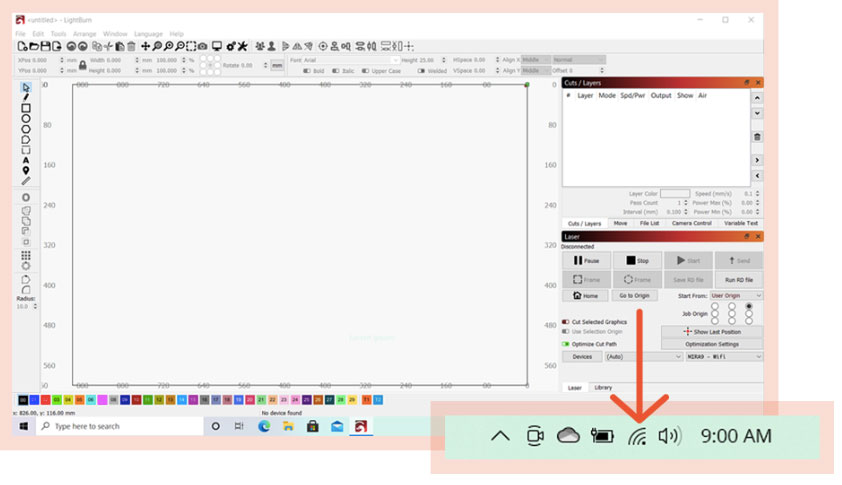
WiFi symbol on Taskbar - Select your laser from the list of available WiFi connections and click Connect.
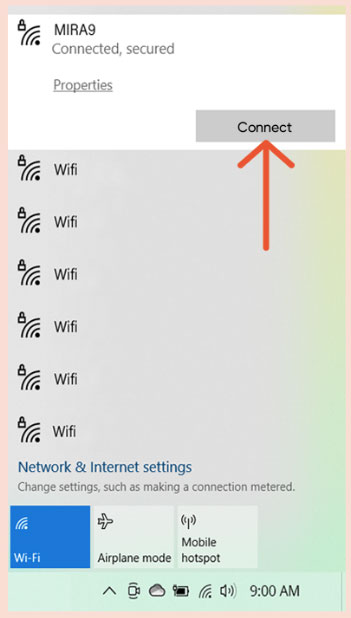
List of available WiFi connections NOTE: You will not be able to access the internet via WiFi when connected to the laser via a WiFi connection.
- In the Laser Window, right-click the Devices button to reset the connection. It should now say Ready.
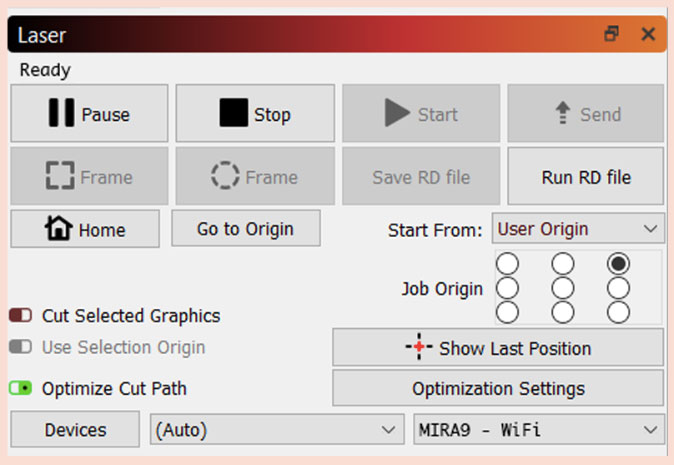
Laser Window
Congratulations! Lightburn is now connected to your laser via WiFi.
If you have any questions or concerns, please send us an email at support@aeonlaser.us for the fastest service. If your laser is malfunctioning, please submit a support ticket